git Tips and Tricks
Over the years I've spent a lot of time helping other developers fix problems they created using git. I wanted to take the time to document a few tips that can help you avoid creating those problems in the first place.
I put this first because if I don't warn people early they make this mistake more often than not.
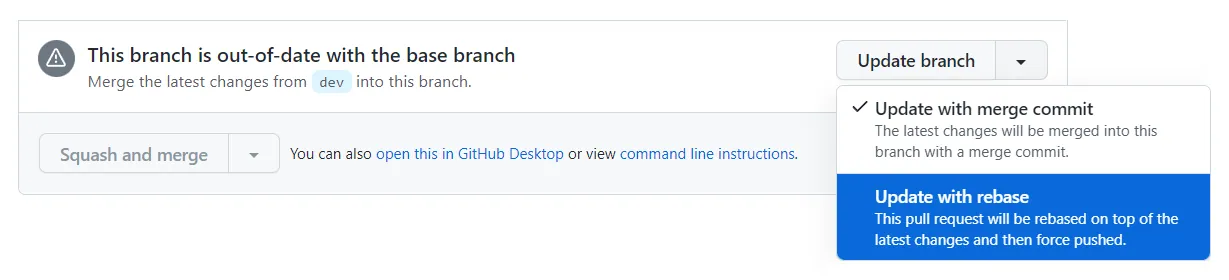
Updating a branch isn't really so simple that you can do it with a click of a button. If you don't know exactly what the button is about to do, clicking it is going to make a mess.
The core features of git are relatively stable, so a lot of the recent changes focus on making it easier to use. You definitely want those improvements.
If you haven't updated in a while, or if you are on OSX and are using the version of git that comes with XCode, then you could be years out of date.
The history of a codebase is a big complicated thing, to the point where there is no single nice way to visualize it all at once.
Instead the idea with git is that you use the command line to run queries and get nice visualizations of subsets of that information as needed.
The problem is that you have to actually do the queries unless you want to stumble around in the dark.
The git log command actually provides a decent way to see what your git history looks like.
bhiller@ubuntu ~/src/tree % git log --graph --oneline main feature_1
* 8abdf4b (main) Set version 1.1
* 6037b94 Merge feature_2
| * b3a423b (HEAD -> feature_1) Add change 2
| * 2c492b7 Add change 1
|/
* a60d9c4 Set version 1.0
* 4c717fa Initialize repository
The point of reviewing your history as a graph this way is to visualize what a merge or rebase will actually do.
The example output I've shown above is pretty simple, but if what you see is huge and incomprehensible then there is a decent chance you've already made a mess of your branch and need to fix that before trying to move forward with more changes.
While I like git log, and it has a lot of additional power to filter the output or change how it is rendered, if you find it hard to read there are plenty of nice history viewers out there.
A full git install will provide a somewhat ugly looking one that you can access by running gitk in the terminal.
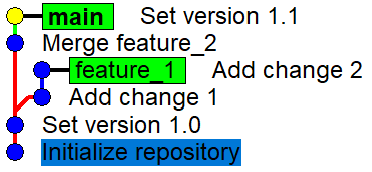
The official git website has a comprehensive list of prettier options.
When you use git pull to pull remote changes git does two separate things:
- It uses
git fetchto download the changes into a remote tracking branch - It then updates whatever branch you are currently on with those changes, doing a merge by default
The issue with this being that your are taking whatever the server gives you and, without looking at it, trying to combine it into your local changes.
You can simply use git fetch yourself and save a lot of headache. Then you just need to know where fetch puts the content it fetched and you can do a merge or rebase yourself.
bhiller@ubuntu ~/src/tree % git fetch origin main
From github.com:BenoitHiller/tree
 * branch            main       -> FETCH_HEAD
 * [new branch]      main       -> origin/main
In the output when fetching it shows you where it placed the things it fetched. In the above it is telling you that the content of main from origin was placed into the remote tracking branch origin/main as well as the ref FETCH_HEAD.
You can then have a look at what is actually in fetched branch and decide what to do next.
Even if you are going to rebase your work on top regardless, it is helpful to get an idea whether that rebase is going to be a trivial matter or if you are going to be stuck dealing with it for hours.
I highly recommend using the interactive mode git rebase -i every single time.
The reasoning for this is mostly because it provides a sanity check of what you are about to do before you spend time working through the rebase.
git rebase uses simple rules to figure out what commits to try and use, so there are some common situations where it will pick up things that you really don't want and in the process produce awful conflicts or silently break things.
When you do a rebase git does the following:
- It makes a list of all of the commits that are in the current branch but not in the target.
- It saves those commits to a TODO file in order from oldest to newest.
- It then switches to a detached head (basically a temporary branch) that starts at the latest commit in the target
- It goes through the lines in the TODO file one by one, cherry-picking them in order and removing the lines from the file until it is empty.
- When it is done it takes the branch you started on, and updates it to point at the detached head.
When you do an interactive rebase it shows you that TODO file and lets your edit it before starting.
If you are working on a change that is based off of un-merged work you may find yourself in the following situation when the branch you forked off of gets updated.
So for example if you start working on feature_3 based on feature_1 from before you could have a tree like the following:
bhiller@ubuntu ~/src/tree % git log --graph --oneline main feature_3
* 3dc071e (main) Set version 1.1
* dd2fda5 Merge feature_2
| * c6d66d2 (HEAD -> feature_3) Add change 3_1
| * b3a423b (feature_1) Add change 2
| * 2c492b7 Add change 1
|/
* a60d9c4 Set version 1.0
* 4c717fa Initialize repository
If feature_1 gets rebased based on the latest main you will end up with the following situation:
bhiller@ubuntu ~/src/tree % git log --graph --oneline feature_1 HEAD
* 7242394 (feature_1) Add change 2
* 428c44f Add change 1
* 3dc071e (main) Set version 1.1
* dd2fda5 Merge feature_2
| * c6d66d2 (HEAD -> feature_3) Add change 3_1
| * b3a423b Add change 2
| * 2c492b7 Add change 1
|/
* a60d9c4 Set version 1.0
* 4c717fa Initialize repository
Notice how their are now two copies of the Add change 1 and Add change 2 commits.
This can cause a problem when you try to rebase, as if it tries to re-apply the commits they are very likely to have conflicts with themselves that you will be forced to resolve.
The solution to this problem is to look at the list of commits in the interactive rebase TODO list, and delete the things that shouldn't be there.
If you are rebasing a feature branch that you wrote, the only commits that should be getting rebased are the ones you wrote specifically for that feature. Everything else shouldn't be in there.
  1 pick 2c492b7 Add change 1
  2 pick b3a423b Add change 2
  3 pick c6d66d2 Add change 3_1
  4
  5 # Rebase 7242394..c6d66d2 onto 7242394 (3 commands)
When doing the rebase described above you would want to delete the first two lines in this rebase TODO list because you know they aren't a part of the changes you wrote for feature_3.
I highly recommend configuring the following setting in your .gitconfig.
[rebase]
  instructionFormat = "(%an <%ae>) %s"
This will add in the name of the person who made each commit into the TODO list. As usually your feature branch is composed only of things you wrote and you can drop the commits with a different author.
If you're not a vim user please change the core.editor setting to something you actually enjoy using.
It is easy to end up subconsciously avoiding git commands that open an editor simply because you find vim frustrating.
If you are using VSCode you can put the following in your .gitconfig.
[core]
editor = "code --wait"So those are a few of my own tips for people still getting used to git. I mostly tried to focus on topics that I don't see talked about that often, as there are plenty of great articles out there on things like helpful aliases or config settings.
I wanted to talk a bit about git diff, but it is so immensely useful in so many different ways that it doesn't form a single concise tip. The advice I've given about inspecting the tree tells you the shape of the history, git diff is what you should be using to find out the contents of the history.
I hope these tips help you to feel a bit more comfortable working with git.